How to Fix Blurry Photos with AI Upscaler & Enhancer (2026)

Z-Image Team
1/29/2026
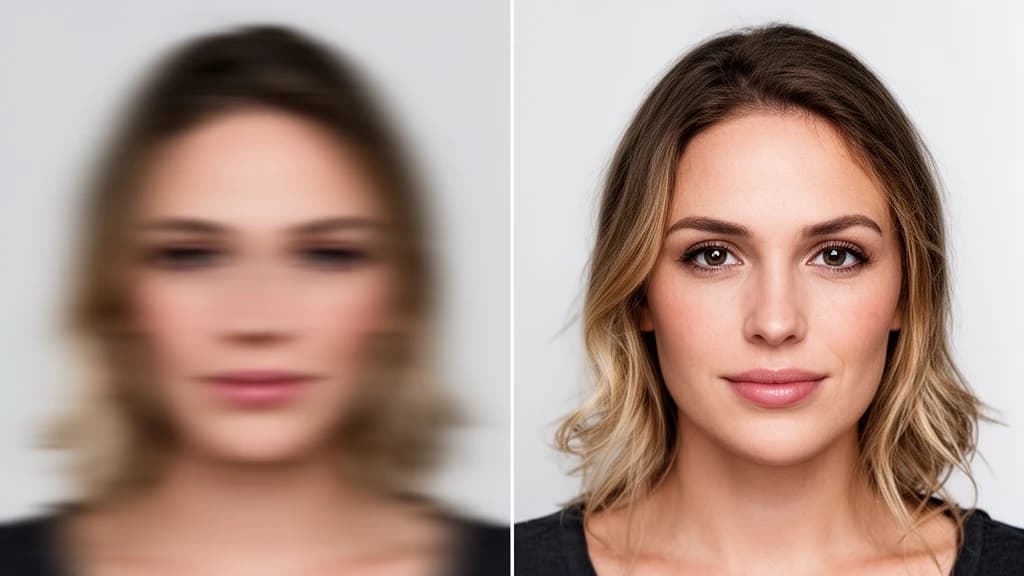
How to Fix Blurry Photos with AI Upscaler & Enhancer
We've all been there—you capture what should be a perfect moment, only to discover later that the photo is blurry, out of focus, or just doesn't look as sharp as you remembered. Whether it's camera shake, poor lighting, or an old low-resolution image, blurry photos used to mean lost memories.
Not anymore. AI upscale technology has revolutionized photo restoration, making it possible to rescue even the most disappointing shots. In this guide, we'll show you exactly how to fix blurry photos using Z-Image's AI Upscaler and Enhancer tools.
Why Photos Become Blurry
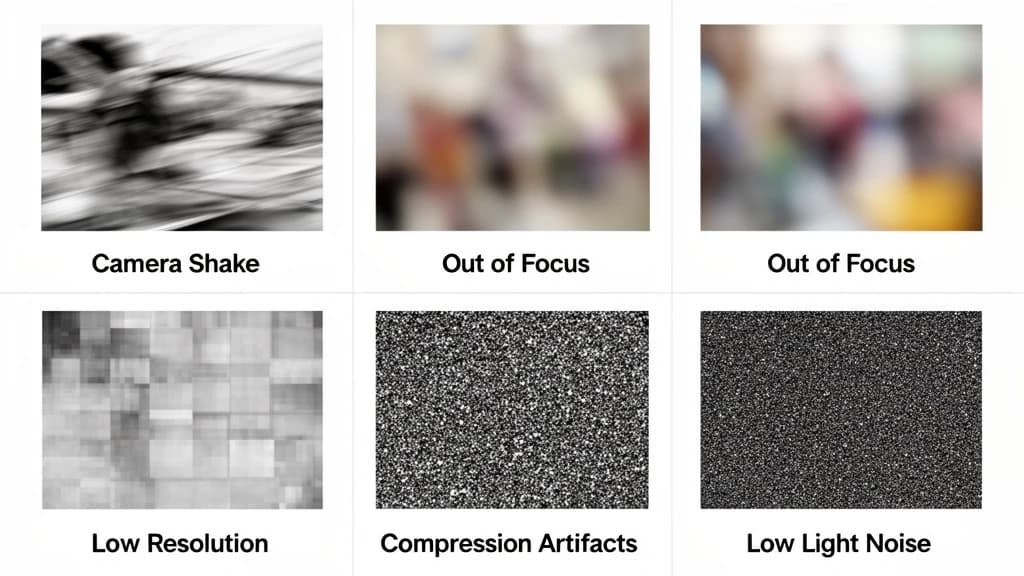
Before we dive into the solution, let's understand what causes blurry photos:
1. Camera Shake
When your hands move slightly while taking a photo, especially in low light conditions where the shutter stays open longer, you get motion blur.
2. Out of Focus
The camera focused on the wrong subject, or the subject moved after the camera locked focus.
3. Low Resolution
Old photos, screenshots, or images downloaded from the web often have low resolution that appears blurry when viewed on modern high-DPI screens.
4. Heavy Compression
Images shared through messaging apps or social media get compressed, losing detail and creating artifacts.
5. Poor Lighting
Low-light photos often have noise and lack sharpness, making them appear blurry.
How AI Upscaling Fixes Blurry Photos
Traditional photo editing tools like sharpening filters only enhance existing edges—they can't recover detail that isn't there. AI-powered upscaling works differently.
Modern AI upscaler models are trained on millions of image pairs (blurry/sharp versions). They learn to:
- Predict missing details based on context and learned patterns
- Reconstruct textures that weren't visible in the original
- Remove noise while preserving genuine image details
- Enhance edges naturally without creating halos or artifacts
This is why AI upscale technology can achieve results that were impossible just a few years ago.
Method 1: AI Image Upscaler (Best for Low-Resolution Photos)
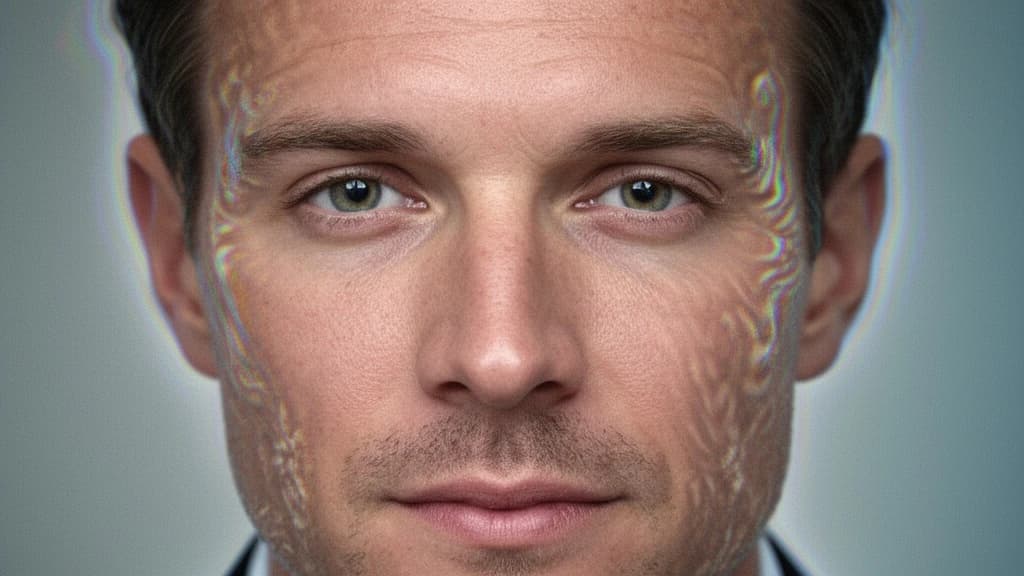
If your photo is blurry because it's low resolution or pixelated, the AI Image Upscaler is your best choice. Use it to AI upscale images up to 4x their original resolution.
When to Use the AI Upscaler
- Old photos from early digital cameras or phones
- Screenshots that need to be enlarged
- Images downloaded from the web
- Thumbnails you want to print
- Product photos that need more detail
Step-by-Step Guide
Step 1: Open the AI Upscaler
Navigate to Z-Image AI Upscaler. No account required for basic usage.
Step 2: Upload Your Photo
Drag and drop your blurry image, or click to select from your device. Supported formats: JPEG, PNG, WebP (max 10MB).
Step 3: Choose Your AI Upscaler Model
Z-Image offers 5 specialized AI upscaler models, each optimized for different use cases:
| Model | Best For | Speed | Credits |
|---|---|---|---|
| Recraft Crisp | Quick fixes, screenshots | ⚡ Fastest | 2 |
| Crystal Upscaler | Portraits, faces | Fast | 4 |
| SeedVR2 | General photos | Medium | 8 |
| Topaz | Maximum detail | Slower | 10 |
| Flux Vision | Creative enhancement | Slowest | 40 |
Pro Tip
Start with Recraft Crisp for a quick preview. For portrait photos, the Crystal Upscaler delivers exceptional facial detail. If you need maximum detail preservation, try the Topaz model.
Step 4: Select Scale Factor
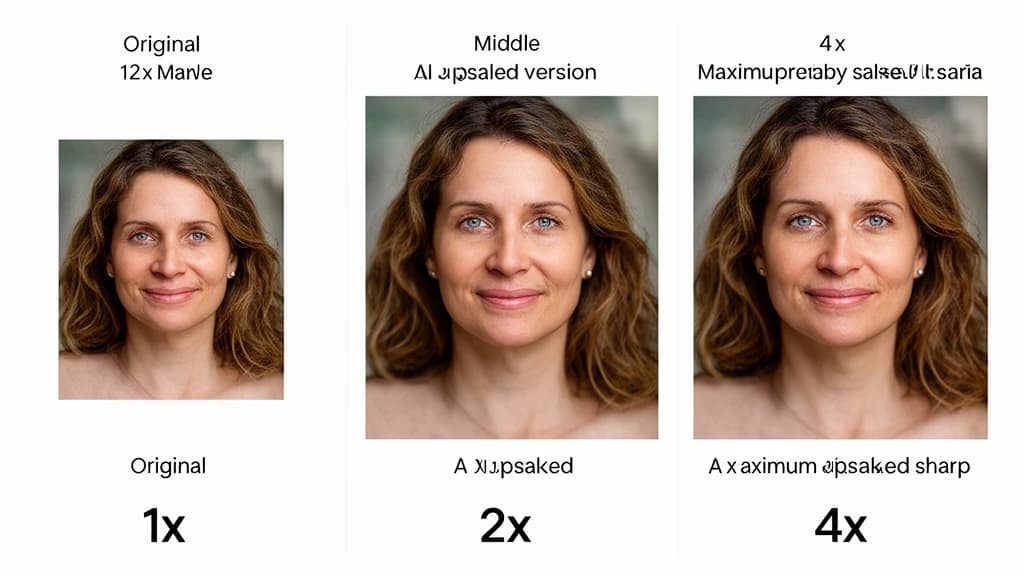
Choose how much to AI upscale: 2x, 4x, or higher depending on your needs. Higher scales take longer but recover more detail.
Step 5: Process and Download
Click "Upscale Now" and wait 10-30 seconds. Use the comparison slider to check the results, then download your AI upscaled image.
Crystal Upscaler: Best for Portrait Enhancement
The Crystal Upscaler is specifically trained for portrait and facial enhancement. It excels at:
- Recovering facial details and skin texture
- Enhancing eye clarity and sharpness
- Preserving natural skin tones
- Upscaling old family portraits
If you're working with photos of people, the Crystal Upscaler should be your first choice.
Method 2: AI Image Enhancer (Best for Quality Issues)
If your photo has decent resolution but suffers from blur, noise, or lack of sharpness, the AI Image Enhancer is more appropriate.
When to Use the AI Enhancer
- Photos with camera shake or motion blur
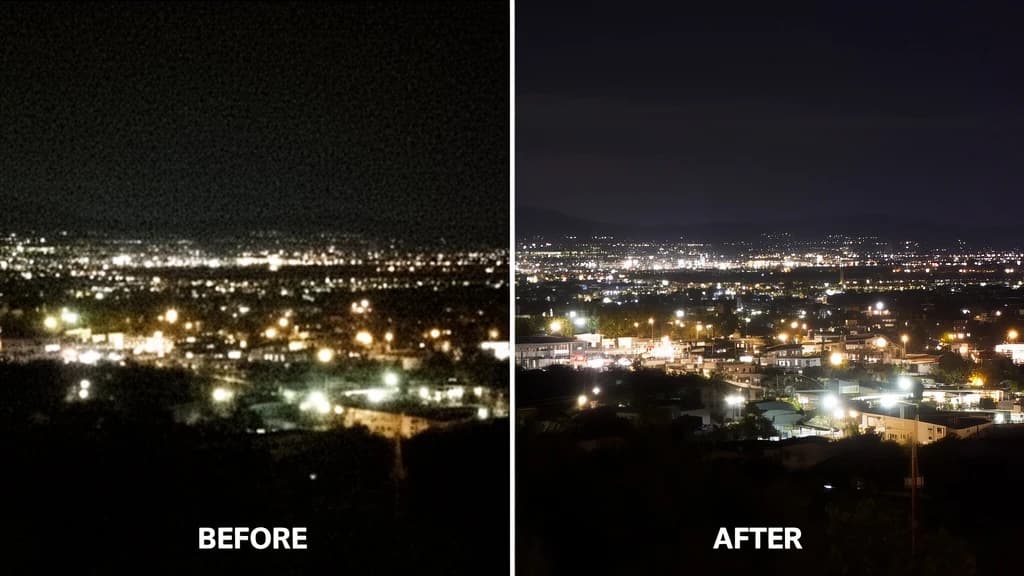
- Low-light photos with noise
- Compressed images with artifacts
- Photos that look "soft" or lack punch
- Old scanned photos
Step-by-Step Guide
Step 1: Open the AI Enhancer
Go to Z-Image AI Enhancer.
Step 2: Upload Your Photo
Same as before—drag and drop or click to upload.
Step 3: Adjust Enhancement Settings
- Detail Enhancement: Higher values create more detail but may introduce artifacts. Start at 50% and adjust.
- Denoise: Enable for noisy low-light photos.
Step 4: Process and Compare
The AI analyzes your image and applies intelligent enhancement. Use the before/after slider to verify the improvement.
AI Upscaler vs Enhancer: Which Should You Choose?
| Scenario | Recommended Tool |
|---|---|
| Small/pixelated image | AI Upscaler |
| Blurry but decent size | AI Enhancer |
| Old family photo | Upscaler first, then Enhancer |
| Screenshot to print | AI Upscaler |
| Noisy night photo | AI Enhancer |
| Social media compressed image | AI Enhancer |
| Vintage scanned photo | Both (AI Upscaler → Enhancer) |
| Portrait photos | Crystal Upscaler |
Pro Tips for Best AI Upscaling Results
Start with the Best Source
AI upscaling works better with higher quality inputs. If you have multiple versions of a photo, use the one with the least compression.
Use the Right Tool First
For severely degraded photos, process order matters: First use AI Upscaler (if resolution is low), then Enhancer (for quality refinement).
Don't Over-Process
Running an image through AI enhancement multiple times can create artifacts. Usually one pass is enough.
Check at 100% Zoom
Always verify results at actual pixel size, not zoomed out. Artifacts may not be visible in thumbnails.
Keep Original Files
Always save your AI upscaled images as new files. Keep the originals in case you want to try different settings.
Real-World Examples
Example 1: Rescuing an Old Family Photo
A faded, low-resolution scan from the 1990s transformed into a sharp, printable image using AI upscale technology.
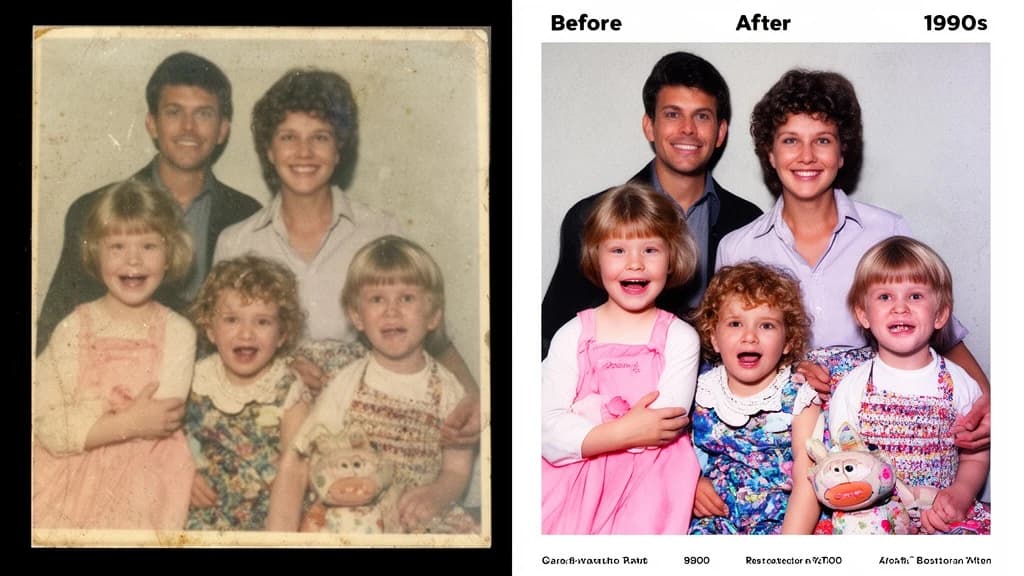
Tools used: AI Upscaler (4x with Topaz model) → AI Enhancer
Example 2: Fixing a Shaky Night Photo
A blurry concert photo with motion blur and noise, restored to show clear details.
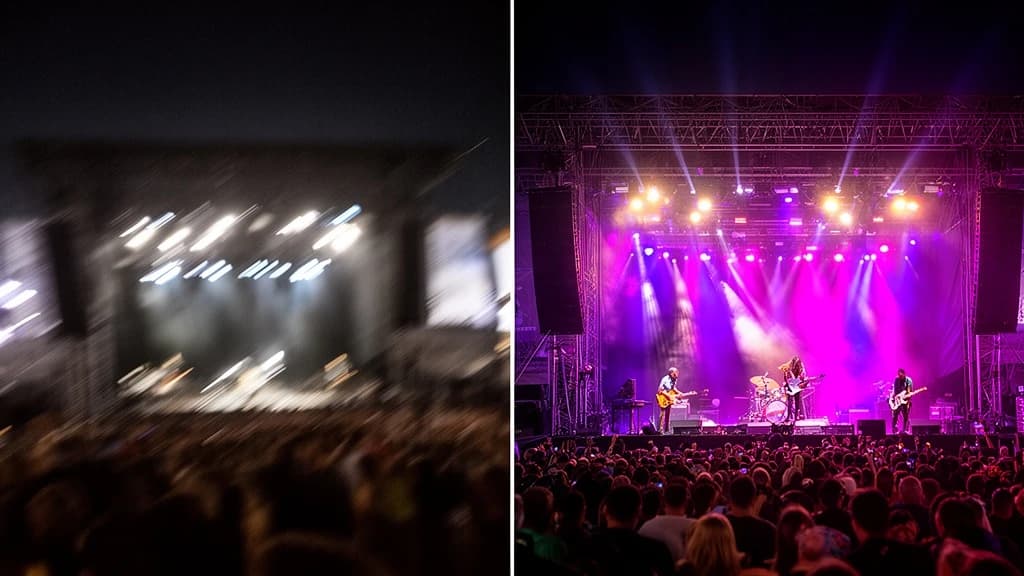
Tools used: AI Enhancer with high denoise setting
Example 3: Enlarging a Product Thumbnail
A small e-commerce thumbnail enlarged to high-resolution for a catalog using AI upscaling.
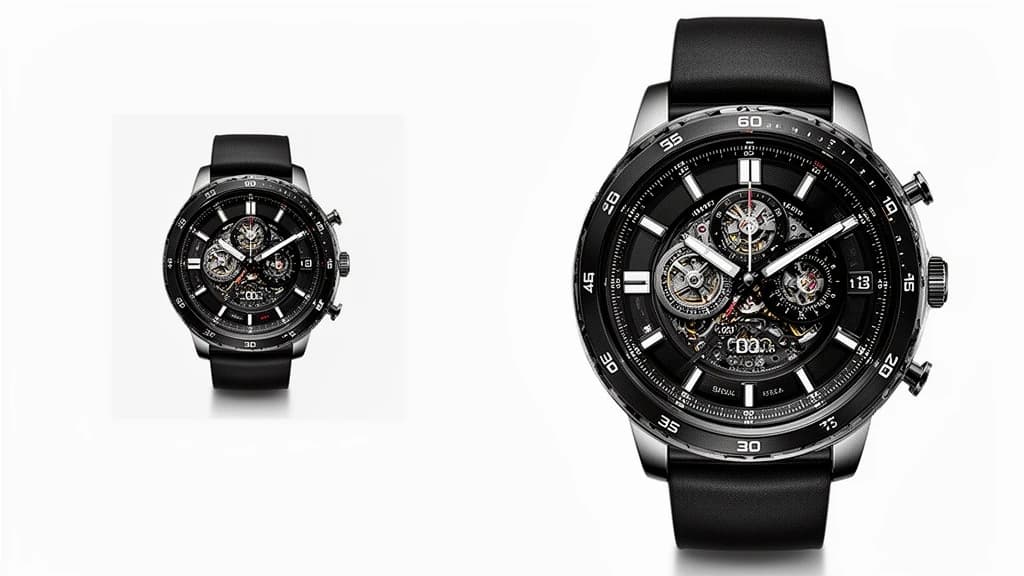
Tools used: AI Upscaler (4x with Recraft Crisp for speed)
Limitations: What AI Upscaling Can't Fix
Understanding AI Limitations
While AI upscale technology is powerful, it has limits:
- Completely out-of-focus photos: AI can improve but not fully recover subjects that are extremely blurred
- Heavy motion blur: Severe motion blur is difficult to reverse
- Missing information: AI "guesses" details—for critical applications, verify accuracy
- Text in images: AI may not perfectly reconstruct blurry text
For best results, manage expectations and use AI upscaling as a tool to improve photos, not magically perfect them.
Frequently Asked Questions
Is AI photo upscaling free?
Z-Image offers free credits to try the AI Upscaler and Enhancer. Basic AI upscale is accessible without signup.
Will AI upscaling make my photo look fake?
When used appropriately, AI upscale enhancement looks natural. Avoid over-processing by using moderate settings.
Can I use AI upscaled photos commercially?
Yes! Z-Image allows commercial use of AI upscaled images. Check our pricing page for details on commercial plans.
How long does AI upscaling take?
Typically 10-30 seconds depending on image size and the AI upscaler model selected. Faster models like Recraft Crisp complete in under 10 seconds.
Which AI upscaler model should I use?
- Recraft Crisp: Best for quick previews and screenshots
- Crystal Upscaler: Best for portraits and faces
- Topaz: Best for maximum detail preservation
- Flux Vision: Best for creative/artistic enhancement
Start AI Upscaling Your Photos Now
Don't let blurry photos stay that way. With Z-Image's AI Upscaler and Enhancer tools, you can rescue old memories, improve your content, and get professional-looking results in seconds.
Have questions about AI upscaling or fixing blurry photos? Contact us at support@z-image.net or join our community for tips and tricks.